On this page · 17 sections
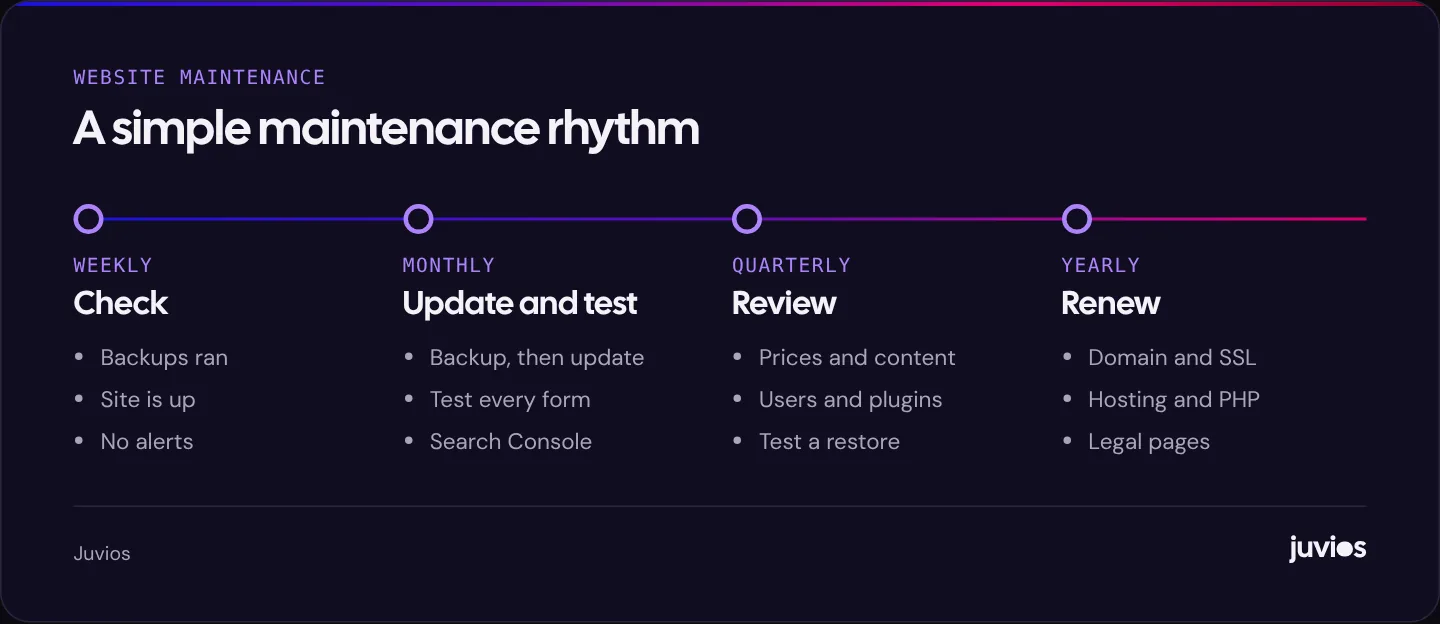
Website maintenance means four things: keeping the site secure, keeping it working, keeping it fast and keeping it accurate. For a typical small business site, that comes down to a short weekly check that backups ran and nothing is down, a monthly round of updates and a test enquiry, a quarterly review of content, users and plugins, and a yearly check of renewals and the hosting set-up. This guide sets out what to do and how often, explains why each task matters, and helps you decide whether to do it yourself or pay someone, whichever platform your site runs on.
Why maintenance matters more than it seems
A website rarely breaks in a dramatic way. More often it fails quietly. A plugin update stops the contact form sending emails, and nobody notices for a month. A domain renewal fails because the card on file expired. The site gets slower as images pile up. An old staff account with a weak password becomes the way in for an attacker. Prices on the site drift out of date.
Each of these costs enquiries, money or trust, and each is easy to prevent with a regular routine. The work isn’t difficult, but it needs to happen on a schedule, not only when something has already gone wrong.
 Tap to enlarge
The checklist at a glance
| Task | How often | Why |
|---|---|---|
| Confirm backups ran and are stored off the server | Weekly | You can only restore what you’ve actually saved |
| Check uptime alerts and that the site loads | Weekly | Catch outages before customers do |
| Apply updates after a fresh backup | Monthly, or sooner for security fixes | Most attacks use known, already-fixed weaknesses |
| Send a test enquiry through every form | Monthly, and after every update | Forms fail silently |
| Check Search Console for errors and security issues | Monthly | Spot indexing problems and warnings early |
| Review key pages for speed on a phone | Monthly | New images and plugins slow sites down |
| Review prices, hours, team and offers | Quarterly | Out-of-date details lose trust |
| Remove unused plugins, themes and user accounts | Quarterly | Less to update, less to attack |
| Test restoring a backup | Quarterly | A backup that won’t restore isn’t a backup |
| Check domain, SSL and hosting renewals | Yearly | Expired domains take sites and email offline |
| Check server software versions | Yearly | Old versions stop receiving security fixes |
| Review legal pages and cookie set-up | Yearly, or when tools change | Keep policies accurate |
Backups: the task that saves you when everything else fails
A backup is a copy of your site’s files and database that you can restore if something goes wrong: a bad update, a hack, a mistake while editing, or a problem at your host.
- Back up both the files (themes, plugins, uploaded images) and the database (pages, posts, settings, orders).
- Keep copies somewhere other than the web server, such as cloud storage. If the server is compromised or lost, backups stored on it may go too.
- Keep several versions, not just the latest. If a problem went unnoticed for two weeks, a one-day-old backup won’t help.
- Back up more often if the site changes often. A shop taking orders daily needs daily backups; a brochure site may be fine weekly.
- Test a restore every few months, ideally to a staging copy, so you know the process works and how long it takes.
Updates: core, plugins, themes and the server
Most websites are built from parts made by other people: a content management system such as WordPress, plugins that add features, a theme, and server software such as PHP. Each one receives updates that fix bugs and security weaknesses.
A safe update routine
- Take a fresh backup.
- Read what each update changes, especially major version updates.
- Where possible, apply updates on a staging copy of the site first and check key pages and forms.
- Apply updates to the live site, one group at a time.
- Check the homepage, a service page, the forms and, for shops, the checkout.
- Note what was updated and when, so you can trace any problem that appears later.
Security updates shouldn’t wait for the monthly round. Many plugins and platforms can apply minor and security updates automatically; that’s usually a sensible default, as long as backups and form checks are in place.
Don’t forget the server. WordPress.org currently recommends PHP 8.3 or greater, and MySQL 8.0 or MariaDB 10.11 or greater, with HTTPS. Older versions may still run WordPress but have reached end of life and no longer receive security fixes. Your host can tell you what your site uses and how to upgrade.
Security basics anyone can do
- Use strong, unique passwords and turn on two-factor authentication for every admin account.
- Give each person their own login, with the lowest level of access they need. Remove accounts when people leave.
- Delete plugins and themes you don’t use, rather than just deactivating them.
- Only install plugins from reputable sources, with recent updates and active support.
- Keep HTTPS working across the whole site.
- Use your host’s firewall or a reputable security service if one is offered.
- Watch for warning signs: unknown admin users, strange redirects, unfamiliar pages in search results, or a Search Console security alert.
None of this makes a site impossible to hack, but it closes the most common doors. Most attacks on small business sites are automated and look for known weaknesses in out-of-date software and weak passwords.
Forms, tracking and the things that make you money
The parts of your site that bring in enquiries and sales deserve the most frequent checks, because their failures are silent and expensive.
- Submit a test enquiry through every form each month and after every update. Confirm the email arrives, and that it lands in the inbox rather than spam.
- For shops, place a test order, including payment and confirmation emails, after updates to the shop or payment plugins.
- Check that tap-to-call links and booking links work on a phone.
- Confirm analytics and ad conversion tracking still record enquiries. Website changes often break tracking without anyone noticing.
If tracking is new to you, our guide to tracking which marketing brings in enquiries explains a simple set-up that’s easy to check each month.
Speed and performance
Sites slow down over time. New images are uploaded at full camera size, plugins add scripts, and third-party tools such as chat widgets and tracking tags pile up.
- Check your main pages on a phone each month. If they feel slower, find out what changed.
- Resize and compress images before uploading.
- Review third-party scripts once a quarter and remove any you no longer use.
- Look at the Core Web Vitals report in Search Console for pages that need attention.
For the fixes that make the biggest difference, see how to improve Core Web Vitals.
Content: keep the facts right
Out-of-date information is a maintenance problem too. A customer who calls about a service you stopped offering, or turns up during hours you no longer open, loses trust in everything else on the site.
- Prices, packages and offers.
- Opening hours, including holidays.
- Team members and photos.
- Services added or retired.
- Contact details, addresses and maps.
- Dates in headlines and copy that now look stale.
- Old blog posts with advice that has changed.
A quick way to do this is to open each main page on your phone with a printed list of current prices, services and hours beside you, and note anything that doesn’t match.
Make one person responsible for this review each quarter. It takes an hour and is easy to forget without a reminder.
Search Console: a free health check
Google Search Console is a free tool that shows how Google sees your site. Check it once a month. It reports pages Google can’t index, security issues it has detected, manual actions, and performance in search. It also emails you about serious problems, which is reason enough to set it up.
If you see pages that aren’t being indexed, why Google isn’t indexing your pages explains what each status means.
Accessibility: a quarterly spot check
A site that was accessible at launch can drift as new content is added. Images get uploaded without descriptions, text is placed on photos with poor contrast, and new forms lose their labels. A short check each quarter catches most of this.
- New images have meaningful alternative text, unless they’re purely decorative.
- Text on coloured backgrounds or photos is easy to read.
- You can move through the main pages and forms using only the keyboard.
- Every form field has a visible label.
- Videos added since the last check have captions.
This isn’t a full audit, but it keeps the basics in place, and it tends to improve the site for everyone, not only people using assistive technology.
Keep a simple maintenance log
Write down what was done and when: updates applied, forms tested, backups restored, plugins removed, content changed. A shared document or spreadsheet is enough.
The log pays off when something goes wrong. If enquiries drop in March, you can see that a form plugin was updated on 3 March and test that first. It also makes handovers easier when a staff member or supplier changes, and it shows whether a paid maintenance plan is actually doing what it promised.
Renewals and ownership: the yearly check
- Domain name: check the renewal date and that auto-renew is on with a valid payment card. An expired domain takes the website and usually the email offline.
- SSL certificate: most hosts renew these automatically, but confirm it’s working.
- Hosting plan: check what you pay for and whether it still fits, including backups, storage and support.
- Paid plugins, themes and tools: renew the ones you use; cancel the ones you don’t.
- Logins: make sure the business, not just one person or a former supplier, holds the admin logins for the domain, hosting and site.
Does the platform change the work?
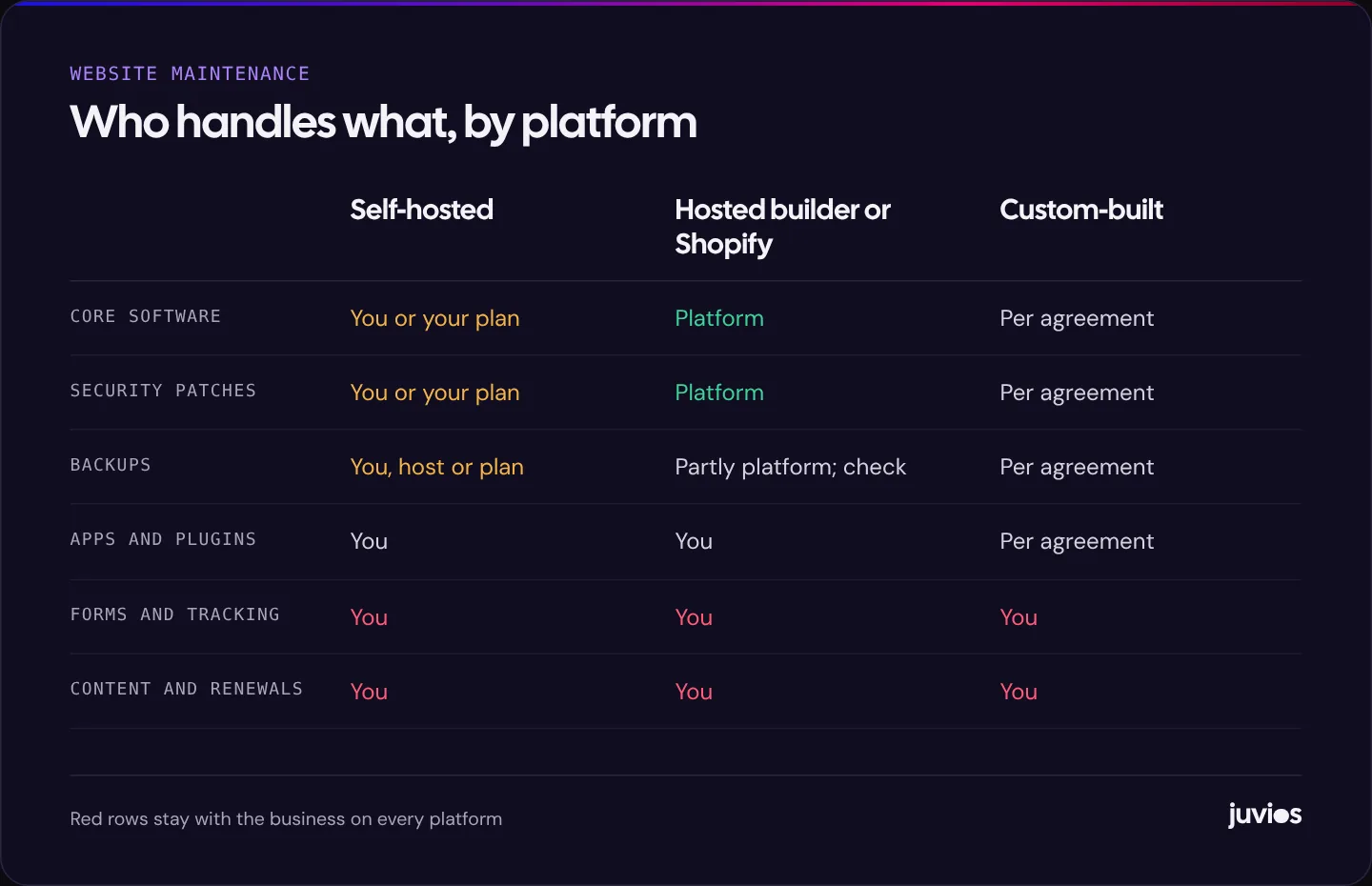
| Platform type | Handled for you | Still your job |
|---|---|---|
| Self-hosted (for example WordPress) | Depends on your host and any maintenance plan | Updates, backups, security, forms, content |
| Hosted website builders and Shopify | Core software, hosting, security patches, SSL | Apps and add-ons, content, forms, tracking, renewals |
| Custom-built site | Depends on your developer agreement | Agree who updates code and dependencies |
Hosted platforms remove much of the technical work, but not all of it. Apps still need reviewing, forms still need testing and content still goes out of date.
 Tap to enlarge
Do it yourself or pay for a maintenance plan?
If your site is simple, you’re comfortable with the admin area and you’ll follow the schedule, doing it yourself is reasonable. Budget an hour or two a month, plus time to fix anything that goes wrong.
A maintenance plan makes sense if the site is important to your income, has a shop or bookings, or if nobody in the business will reliably do the work. When comparing plans, ask:
- Which tasks are included, and how often?
- Are backups stored off the server, and how long are they kept?
- Are updates tested before going live?
- Who checks the forms and tracking after updates?
- What happens if the site is hacked or goes down, and how quickly do you respond?
- Are small content changes included, and how many?
- Do I keep all logins and ownership?
If something goes wrong
- Don’t panic-edit. Note what you see and when it started.
- Check whether it’s the site, the host or your connection, from another device and network.
- If an update caused it, roll back or restore the most recent good backup.
- If you suspect a hack, change all passwords, contact your host and restore from a clean backup. Check Search Console for security issues.
- Afterwards, write down what happened and what will prevent it next time.
Common questions
How often should a small business website be updated?
Apply security updates promptly and other updates monthly, after a backup. Review content quarterly. Check renewals and server software yearly.
What does website maintenance cost?
It depends on the site and who does it. Doing it yourself costs time; plans vary with what’s included. Compare plans by the tasks they cover, how often, and how they handle problems.
Do I need maintenance if my site runs on Shopify or a website builder?
Less technical maintenance, but yes. Apps, content, forms, tracking and renewals still need regular checks.
Sources
- Updating WordPress WordPress.org Documentation
- WordPress requirements WordPress.org
- WordPress backups WordPress.org Documentation
- Hardening WordPress WordPress Developer Resources
- About Search Console Google Search Console Help